Showing posts with label ubuntu. Show all posts

I/O exception(java.io.IOException)caught when processing request to{}->tcp://localhost:2376 xxx in Ubuntu

The error occurred when I'm following in28minutes's course - "Microservices" on Udemy. When using maven build command "spring-boot:build-image -DskipTest" to create a Docker image, it gives the error. After digging a while, I found out that the default one is a socket without TCP on Ubuntu.

I had to allow Docker to accept requests from remote hosts by configuring it to listen on an IP address and port as well as the UNIX socket following steps from here.


1.Edit the docker.service file.

sudo systemctl edit docker.service

Lets say we want to listen for connections from any remote host on port 2376

2. we need to add this lines:

[Service]
ExecStart=
ExecStart=/usr/bin/dockerd -H fd:// -H tcp://0.0.0.0:2376

3. Write the changes (ctrl-o) and exit (ctrl-x).
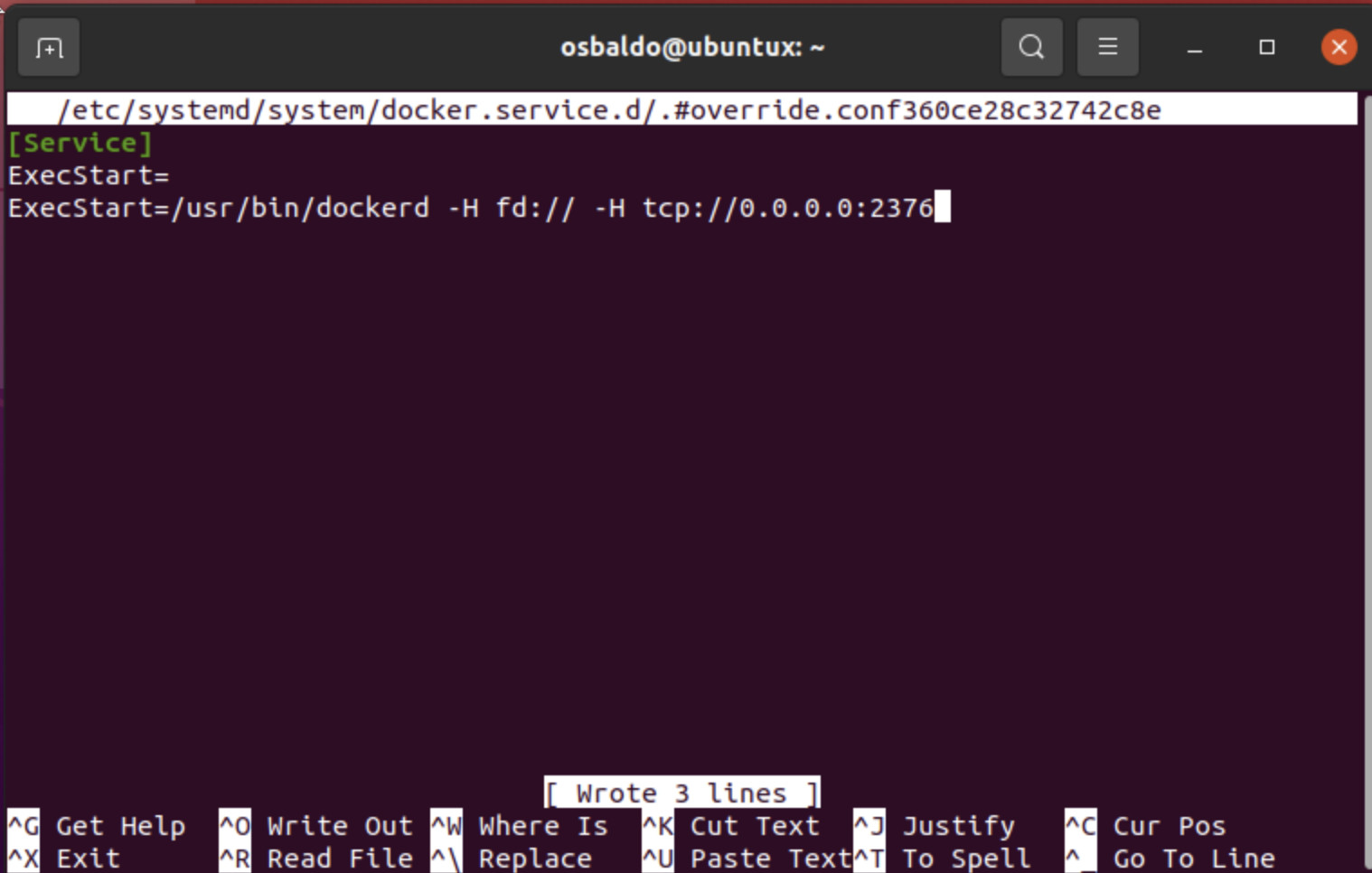
4. Reload the systemctl configuration.

sudo systemctl daemon-reload

5. Restart the Docker service.

sudo systemctl restart docker.service

6. Verify the dockerd daemon listening on the configured port using the netstat command.

sudo netstat -lntp | grep dockerd

here is the sequence:

Also I needed to run the created Docker image with sudo. Another one usefule is creating symlink: sudo ln -s -f /home/[yourusername]/.docker/desktop/docker.sock /var/run/docker.sock


Remote desktop from windows to Ubuntu 18.04

This post is about connecting your remote Ubuntu desktop from your Windows one, especially using the default VNC server on Ubuntu. The basic idea is that 

  • We launch the default VNC server
  • We then use a VNC viewer on Windows to connect the remote Ubuntu desktop

VNC stands for Virtual Network Computing. It is a cross-platform screen sharing system that was created to remotely control another computer. 

The default VNC server on Ubuntu (18.04) is called Vino. It's part of the GNOME project. The Desktop Sharing app you see is vino-preferences. 


On Ubuntu, to launch VNC server:

/usr/lib/vino/vino-server


On Windows, install and use a VNC viewer, e.g., https://www.filehorse.com/download-vnc-viewer/

and enter the VNC server (Ubuntu) properties - IP address: xxx.xxx.xxx.xx:5900 to connect.

Steps to download and install node in ubuntu

  • Download latest or recommended node xxx.tar.xz file from https://nodejs.org/en/

  • Go to the directory in which (.tar.xz file) is downloaded.

  • Update System Repositories: 
    • sudo apt update

  • Install the package xz-utils
    • sudo apt install xz-utils

  • To Extract the .tar.xz file
    • sudo tar -xvf name_of_file

  • Copy to /usr folder
    • sudo cp -r directory_name/{bin,include,lib,share} /usr/

  • Check installed node version
    • node --version


How to turn on/off wifi using command line on Ubuntu

In case the wifi access points have been saved, it will automatically connect. 

Turn on/off wifi:
- nmcli nm wifi on
- nmcli nm wifi off

Newer version (e.g., 18.04):
- nmcli radio wifi on
- nmcli radio wifi off

ERROR: The total number of locks exceeds the lock table size Error Code: 1206

ERROR: The total number of locks exceeds the lock table size Error Code: 1206


Locate the config file of mysql in Ubuntu 18.04

/etc/mysql/mysql.conf.d/mysqld.cnf


Add the following line to the end of the file

innodb_buffer_pool_size        = 1G

vncserver grey screen Ubuntu 18.04 LTS


The symptom happens when I tried to connect from Windows 10 to Ubuntu laptop via the tightvnc viewer where the Ubuntu laptop is running tightvncserver


Solution:

$ sudo apt-get install gnome-panel gnome-settings-daemon metacity nautilus gnome-terminal

Add the following lines to ~/.vnc/xstartup

gnome-panel & 

gnome-settings-daemon & 

metacity & 

nautilus &


[source]: https://askubuntu.com/questions/800302/vncserver-grey-screen-ubuntu-16-04-lts


How to use password in scp?

We can use sshpass to give the password when using scp to transferring files from server to local.

sshpass -p [yourpassword] scp -r [username]@[address]:[pathinserver] [localpath]

How to check resource (cpu, memory etc.) usage in MB in Ubuntu?

The familiar command in Ubuntu for checking the current resource usages such as CPU, memory usages is probably the "top" command which shows more or less the following information:


Although it is informative, it is less readable and if you want to quickly have an idea of resource usage, e.g., in MBs, the "htop" should be a useful tool to have. Compared to the "top" command, it shows the information as follows, which is much informative than the earlier one.


How to install htop in Ubuntu?


sudo apt-get update
sudo apt-get install htop

Useful Linux commands


File Manipulation


# How to copy a file? e.g., top-words-2.sh to top-words-3.sh 

cp -v top-words-2.sh top-words-3.sh
cp -v top-words-{2,3}.sh

# How to zip a folder into a .zip file? e.g., we want to create a .zip file called zipfilename.zip by zipping all files in the folder named folder_name

zip -r zipfilename.zip folder_name


Search


# How to search files containing a certain str?

grep -iRl "str to search" ./

-i - ignore text case
-R - recursively search files in subdirectories.
-l - show file names instead of file contents portions.


grep -rnw '/path/to/somewhere/' -e 'pattern'

# only search through those files which have .c or .h extensions

grep --include=\*.{c,h} -rnw '/path/to/somewhere/' -e "pattern"

# exclude searching all the files ending with .o extension

grep --exclude=*.o -rnw '/path/to/somewhere/' -e "pattern"

# exclude a particular directory(ies) through --exclude-dir parameter. For example, this will exclude the dirs dir1/, dir2/ and all of them matching *.dst/

grep --exclude-dir={dir1,dir2,*.dst} -rnw '/path/to/somewhere/' -e "pattern"


# today's file at current directory with certain regex

find . -maxdepth 1 -mtime 0 -name "*hello*"

# change multiple file names, e.g., *.txt files to *.text

for f in *.txt;
do mv -- "$f" "$(basename "$f" .txt).text"
done

# find and remove files

# first command remove directories as well
find . -name "FILE-TO-FIND" -exec rm -rf {} \;
# second command only removes files
find . -type f -name "FILE-TO-FIND" -exec rm -f {} \;

# how to delete all files with a certain extension in current directory & subdirectories?

check only:        find . -name "*.bak" -type f
delete as well:    find . -name "*.bak" -type f -delete

# how to delete files that are not belonging to a certain pattern?

find . -type f ! -name '*.txt' -delete

# search process id using certain port (e.g., 8000)

lsof -ti:8000
netstat -tulpn | grep ':443'

Others


# start default vino server in Ubuntu

/usr/lib/vino/vino-server

# clean trash bin

sudo apt install trash-cli
trash-empty

# get full permission to a file/folder
sudo chmod a+rwx /path/to/file
sudo chmod -R a+rwx /path/to/folder

# check status/start/stop/restart a service

sudo systemctl status [service name]
sudo systemctl start [service name]
sudo systemctl stop [service name]
sudo systemctl restart [service name]

How to use proxy for git command, sudo apt, in Ubuntu


Set proxy for svn
Configure in your ~/.subversion/servers
[global]
        http-proxy-host = 127.0.0.1
        http-proxy-port = 3128

Set proxy for git
git config --global http.proxy http://proxyUsername:proxyPassword@proxy.server.com:port


Or configure these globally in your user ~/.gitconfig file, e.g.,
[http]
         proxy = http://xxx.xxx.xxx.xxx:8000


Show current configuration
git config --global --get-regexp http.*
git config --global --list
git config --local --list


Unset proxy

git config --unset http.proxy


Set proxy for apt

sudo nano /etc/apt/apt.conf


add proxy settings, e.g.,

Acquire::http::proxy "http://proxy_username:password@proxy_ip:port";
Acquire::https::proxy "https://proxy_username:password@proxy_ip:port";
Acquire::ftp::proxy "ftp://proxy_username:password@proxy_ip:port";


Ubuntu set proxy

export http_proxy="http://PROXY_SERVER:PORT"
export https_proxy="https://PROXY_SERVER:PORT"
export ftp_proxy="http://PROXY_SERVER:PORT"


Unset
unset http_proxy
unset https_proxy
unset ftp_proxy


Install snap packages behind web proxy on Ubuntu
sudo snap set system proxy.http="http://<proxy_addr>:<proxy_port>"
sudo snap set system proxy.https="http://<proxy_addr>:<proxy_port>"

Putty SSH remote server with password in Windows

putty.exe -ssh [username]@[host] -pw [yourpassword]

You can also run some commands immediately after logging into the server.

putty.exe -ssh [username]@[host] -pw [yourpassword] -m [yourfiilename]

You can edit the file with [yourfiilename] with commands you need to execute, e.g., a file contains commands for ending a screen 

screen -S [screename] -X quit

Keep process running after ending the ssh session using "screen"

Simple scenario from askubuntu:
  • ssh into your remote box. Type screen Then start the process you want.
  • Press Ctrl-A then Ctrl-D. This will "detach" your screen session but leave your processes running. You can now log out of the remote box.
  • If you want to come back later, log on again and type screen -r This will "resume" your screen session, and you can see the output of your process. However, if you have multiple screens have been detached before, you might get this below:


  • In this case, just specify the screen you want to re-attach
    • screen -r 174044.pts-3.srvgal107
  • Kill screen session : Press Ctrl-A then K.
  • Access attatched screen : screen -D -r '1234.somescreensession'
  • Scroll inside screen
    • Maybe there's a better way, but I'm used to scrolling using the "copy mode" (which you can use to copy text using screen itself, although that requires the paste command too):
      • Hit your screen prefix combination (C-a / control+A by default), then hit Escape.
      • Move up/down with the arrow keys (↑ and ↓).
      • When you're done, hit Return twice to get back to the end of the scroll buffer.
      (If you move the cursor after hitting Return once, you'll be selecting text to copy, and hitting Return the second time will copy it. Then you can paste with C-a followed by] )
  • Quite a session: screen -X -S [session # you want to kill] quit